In one of my previous blog posts I showed how to install and run PiHole DNS server locally as a Docker container in your Synology NAS server. This worked great as the PiHole dashboard shows the list of identified annoying advert requests that were blocked shows.

So far I did configure my PiHole DNS server within my Chrome browser so that the browser cant load those annoying domains anymore. This worked like a charm, until quite recently Google updated Chrome browser to only allow a ‘secured DNS connection’ which actually seems a bit of a trojan horse for their own ads as it kicked out my own local PiHole DNS server.
So I as back at the start, all advertisements are showing up again in my browser. Now you could argue, use Firefox browser instead, but I did not want to change my behaviour to be honest.
Also I was given the challenge to also block some other domains, like TikTok and Fortnite so that my kids are no longer able to consume their addictive content. And yes, its a constant fight to keep your children save of the so called ‘social media’ and addictive shooting games.
Long story short, I needed a more effective way to block those domains that is centrally configurable and not within the local browser.
First attempt was to use my ZTE DSL router’s (ZTE MC888A, ZTE MC888D, ZTE T5400 Ultra, ZTE MC801A, ZTE MC801ZTE, MC888 ) domain block list, which effectively worked, but it did not support any domain wildcards and more importantly it did not allow me to configure more than 10 blacklisted domains.
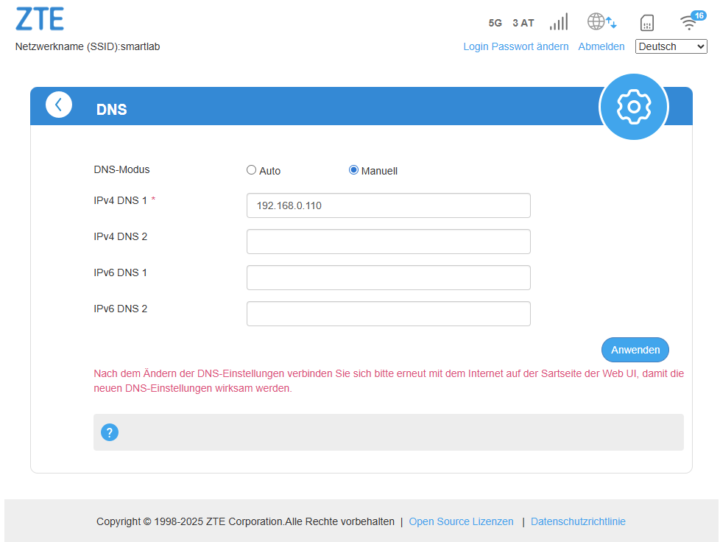
The final, successful approach was to use the quite hidden DNS setting within my ZTE DSL router (ZTE MC888A, ZTE MC888D, ZTE T5400 Ultra, ZTE MC801A, ZTE MC801ZTE, MC888 ) to configure my PiHole DNS server as the one and only source of DNS resolvement, as it is shown in the image below:
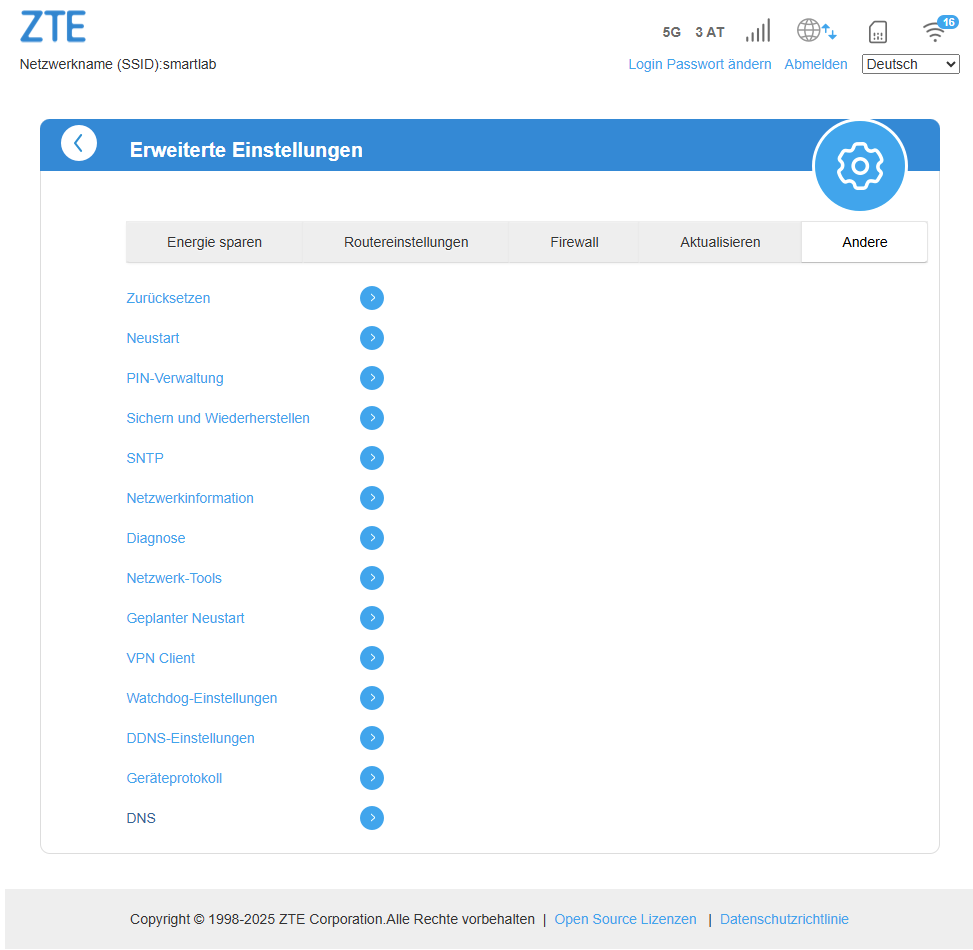
In your ZTE DSL router (ZTE MC888A, ZTE MC888D, ZTE T5400 Ultra, ZTE MC801A, ZTE MC801ZTE, MC888 ) you need to open the ‘Advanced settings’ and navigate to ‘DNS’ where you switch to manual DNS settings as it is shown below. As my PiHole server is running on my local Synology Disk in a Docker container with local IP address 192.168.0.110, you need to enter that PiHole local IP address there.
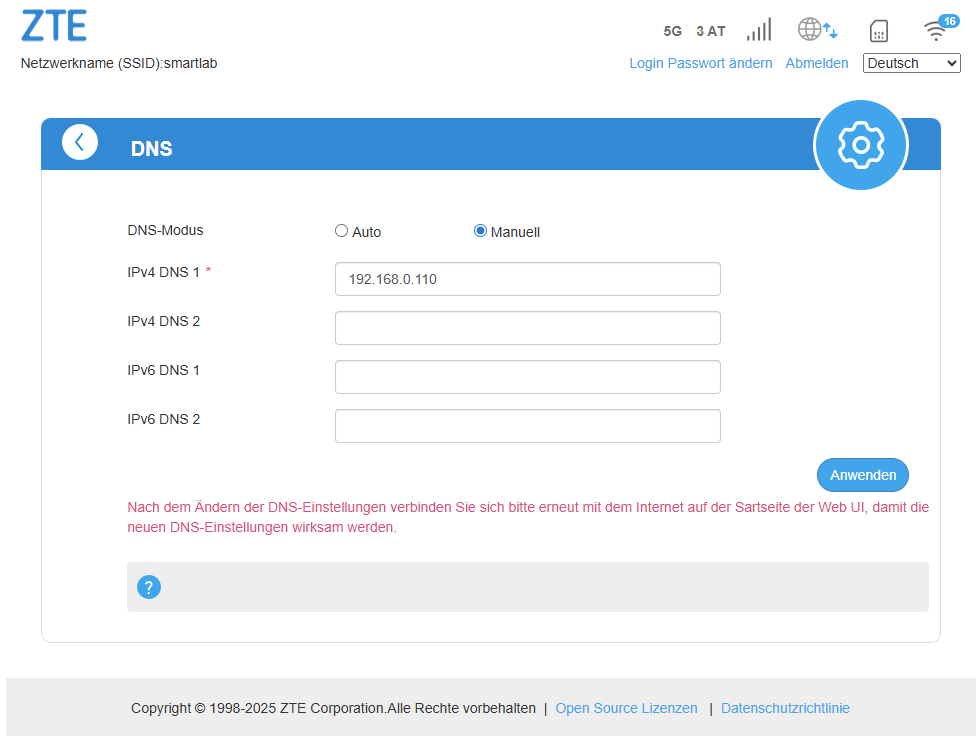
Mind that you need to restart your ZTE DSL router (ZTE MC888A, ZTE MC888D, ZTE T5400 Ultra, ZTE MC801A, ZTE MC801ZTE, MC888 ) so that the new DNS server is applied correctly. Before the restart it will still use the old one!
Summary
By using my own hosted PiHole DNS server (thank god for that genius piece of software) directly configured in your ZTE DSL router you can globally block any advertisements and also annoying shooter games and ‘antisocial network’ domains to keep your children shielded from that negative influence and to avoid annoying ads targeting my kids.